First, the physics
For decimal units, 100 GB is 800 billion bits. Divide that by the usable bits per second to calculate transfer time. The table assumes continuous use of the stated upload rate and rounds up to whole minutes. It excludes setup, protocol overhead, contention, storage limits and a separate recipient download. A 100 GiB workload is larger than 100 GB; use the actual byte count for planning.
| Your upload speed | Best possible time for 100 GB |
|---|---|
| 1 Gbps | 14 min |
| 500 Mbps | 27 min |
| 100 Mbps | 2 h 14 min |
| 50 Mbps | 4 h 27 min |
| 20 Mbps | 11 h 7 min |
The options
| Method | Best fit | Check before sending |
|---|---|---|
| Storage or sharing link | An occasional handoff to someone using a browser | Current per-file and transfer limits, available storage, link expiry and resumable upload support |
| SFTP or a scripted copy | Known endpoints managed by a technical team | Credentials, permissions, client recovery behavior, logs and performance on this route |
| Accelerated managed transfer | Repeated large deliveries over a challenging network | Supported endpoint path, sustained throughput, recovery, access policy and recipient experience |
| Encrypted physical drive | A route with insufficient connectivity or an offline destination | Copy and verification time at both ends, transit time, key exchange and chain of custody |
| Ripton Cloud | Package delivery through Desktop or an eligible browser path | Plan eligibility, configured node and storage, transfer path and a representative trial |
How to do it with Ripton Cloud
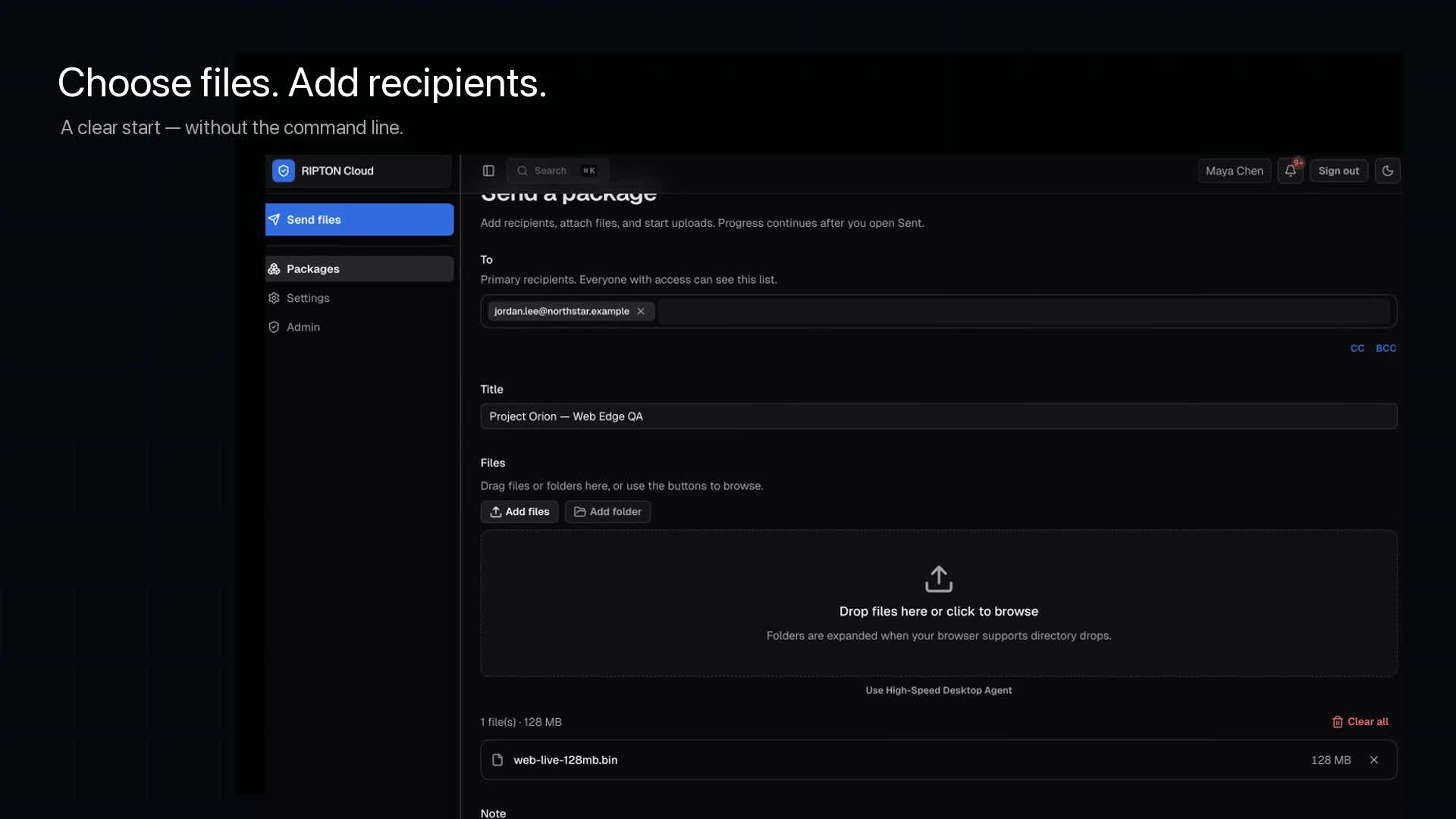
- 1Create a package, add the recipient's email, and select the file or the folder. Folders travel as one package with their structure intact.
- 2Use Ripton Desktop for the native accelerated path, or an eligible Web Edge browser path where deployment and policy permit it. Confirm the selected node and destination storage.
- 3Check the recipient's permitted access and download path with a non-sensitive sample before sending the full delivery.
- 4Watch transfer completion separately from recipient download. Verify the expected file count and integrity at the destination before closing the handoff.
A checklist before the full 100 GB transfer
- 1Confirm whether the workload is one large file or a folder containing many small files; test the same structure you intend to deliver.
- 2Check free space at both ends, write permissions, link expiry and whether the devices can stay awake for the transfer window.
- 3Run a representative non-sensitive sample on the same endpoints. Record bytes, elapsed time, client versions and concurrent traffic.
- 4Test a brief connectivity interruption only on an approved test endpoint. Check whether recovery retransmits the whole file or uses retained progress; also test application restart separately if required.
- 5Agree who confirms receipt, which integrity check is required, and who handles a missed deadline.
A transfer progress bar reaching 100% is not a substitute for the receiving team's acceptance. Record the package identifier and verify that the intended user can open the delivered files. Keep the source until the handoff is accepted.