Reusable destination
Give a production, research, finance, or operations team a durable place to receive repeat package deliveries.
Shared Inboxes
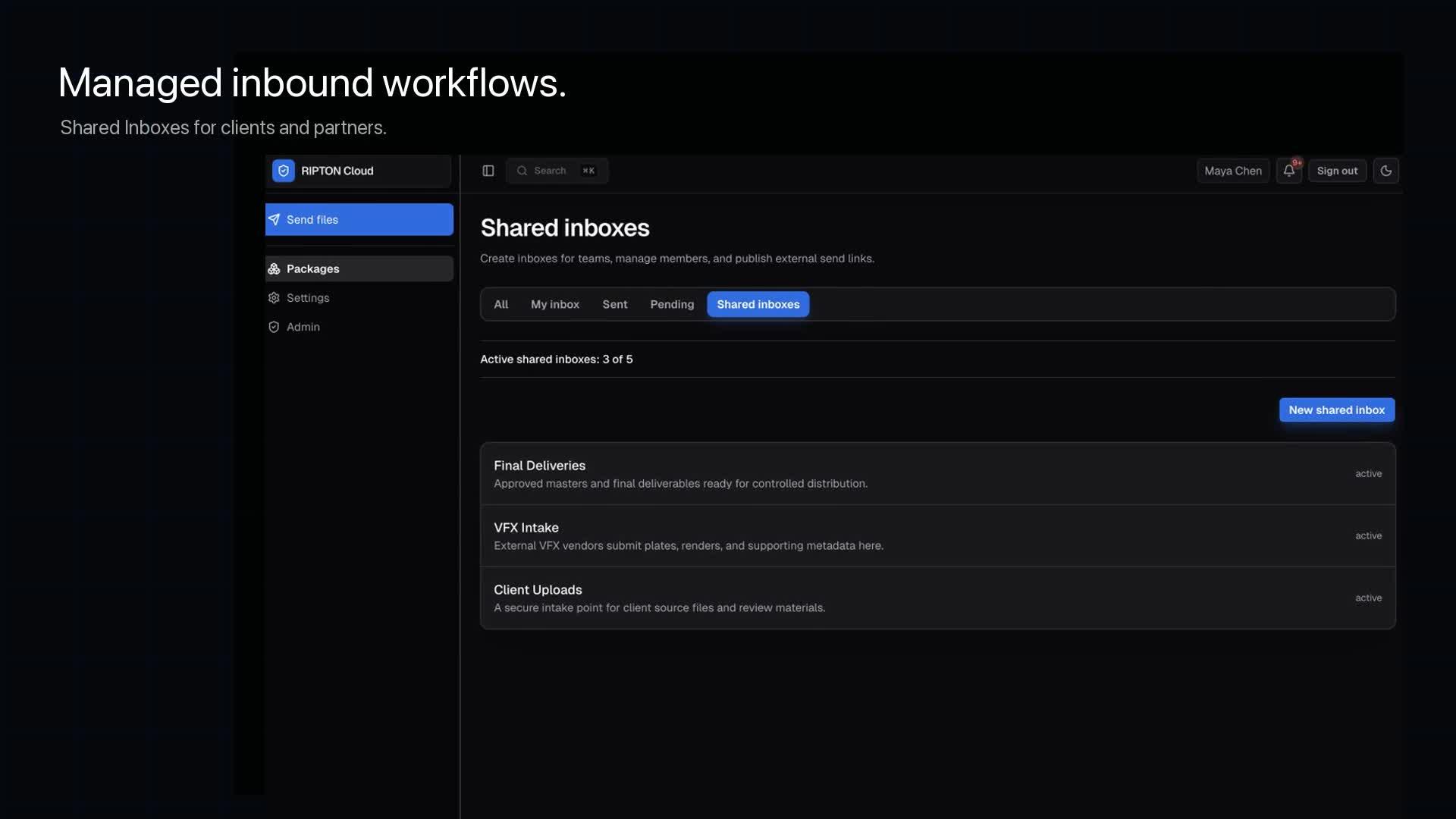
Give approved senders a reusable destination for large-file deliveries. Shared Inboxes bring team roles, external upload access, notifications, and received packages together. They are built for file intake—not shared email conversations.
entry
Teams + partners
control
Inbox access
transfer
Approved upload
evidence
Received packages
Workflow example
Consider a production team receiving weekly packages from an external vendor. A Shared Inbox keeps the receiving destination attached to the team instead of a single employee.
Create the team destination and assign managers and members. Decide who is responsible for reviewing outside access.
Invite the collaborator or review their guest access request. Approval grants the supported upload scope, not general access to the workspace.
Review received packages and notifications in the inbox. Manage invitations as the vendor relationship changes.
In your demonstration, ask to see the manager and external-sender experiences, a received package, and what happens after an invitation is removed.
Why it matters
Give a production, research, finance, or operations team a durable place to receive repeat package deliveries.
Separate manager, member, collaborator, and guest-request responsibilities instead of relying on one employee's links.
Keep received package visibility and notifications attached to the team destination as people and projects change.
How it works
An internal owner manages the destination and its members. External senders use an invitation or an approved access request before receiving the supported upload scope.
Name the destination, define its purpose and status, and establish the internal ownership model.
Add managers and members with the current shared-inbox roles.
Invite a collaborator or review a guest access request before narrow upload access is issued.
Follow notifications, received packages, membership changes, invitation status, and inbox activity.
Capability detail
Attach internal users to a Shared Inbox with distinct responsibilities and supported in-place role updates.
Invite, resend or rotate, list, and remove approved external collaborator invitations.
Allow an external sender to request access and let an authorized operator approve or deny it before upload.
See packages assigned to the destination and support member and collaborator notification workflows.
Operational evidence
The Shared Inbox connects internal membership, external access, notifications, and received packages around a controlled transfer destination.
Continue exploring
Understand the scoped external entry experience.
Explore →See how packages are prepared and followed.
Explore →Apply Shared Inboxes to a repeat partner workflow.
Explore →Create the inbox, add members, publish the link, approve requests.
Explore →Let anyone send you large files without giving them an account.
Explore →Footage from shoots and freelancers arriving as folders.
Explore →Frequently asked questions
No. Supported external guests remain separate from the named-user directory and receive only the approved upload access.
Yes. Current Shared Inbox controls support listing, rotating or resending, and removing collaborator invitations.
No. It is a controlled destination and package-access workflow. Storage lifecycle, cataloging, archive policy, and records management remain separate responsibilities.
Evaluate the workflow
Bring the team, sender population, approval path, package type, and notifications you need. We will walk through the internal and external experience.